Survey Settings
All survey settings are configured in the YAML header of the survey.qmd file. If you wish to use the default settings, no YAML header is required.
Default settings
There are three categories of settings:
- The
theme-settingscontrol the visual appearance of the survey. You can customize the theme, position of the progress bar, and footer text. - The
survey-settingsincludes various options to customize the survey behavior, such as enabling cookies, enabling auto-scrolling, changing the system language, highlighting unanswered questions, and specifying required questions. - The
system-messagessection allows you to customize the text for various buttons and messages displayed throughout the survey.
This is the comprehensive list of all default survey configuration settings:
---
theme-settings:
  theme: default
  barposition: top
  barcolor: ~
  footer-left: ''
  footer-center: ''
  footer-right: ''

survey-settings:
  mode: database
  show-previous: no
  use-cookies: yes
  auto-scroll: no
  rate-survey: no
  all-required: no
  start-page: initial_page
  system-language: en
  highlight-unanswered: yes
  highlight-color: gray
  capture-metadata: yes
  required: []
  all-shuffled: no
  shuffled: []

system-messages:
  cancel: Cancel
  confirm-exit: Confirm Exit
  sure-exit: Are you sure you want to exit the survey?
  submit-exit: Submit and Exit
  warning: Warning
  required: Please answer all required questions before proceeding.
  rating-title: Before you go...
  rating-text: 'Rate your survey experience:'
  rating-scale: from 1-poor to 5-excellent
  previous: Previous
  next: Next
  exit: Exit Survey
  close-tab: Please close this tab manually to exit the survey.
  choose-option: Choose an option...
  click: Click here
  redirect: Redirecting in
  seconds: seconds
  new-tab: Opens in a new tab
  redirect-error: "Error: This text won't trigger any redirection..."
---- All YAML keys can be written with underscores (
_) or hyphens (-), so bothuse-cookiesanduse_cookiesare valid. - In YAML keys, you have 2 ways to represent boolean values:
true/falseoryes/no. Both are acceptable. Fortrue/false, you can also use capitalized versions:True/False.
settings.yml file
When you render your surveydown survey, a _survey folder is generated that contains all files needed to run the survey. In that folder, there is a settings.yml file that contains all survey settings in YAML format. This file is automatically generated based on the YAML header in your survey.qmd file. You can open and inspect this file to see how your survey settings are stored.
Do not manually edit the settings.yml file, as any changes you make will be overwritten the next time you render your survey.
Theme settings
Overall theme
Because the survey.qmd is a Quarto document, you can use any of the Quarto formatting options to change the appearance of your survey.
For example, you can change the overall survey theme using the theme key:
theme: united # Any bootswatch theme There are 25 bootswatch themes to choose from. You can also provide a custom.scss file to further modify the theme, or even combine the two, e.g.:
theme: [united, custom.scss]Progress bar
You can modify the survey progress bar with the barcolor and barposition keys, e.g.:
barcolor: "#768692"
barposition: top
The barcolor key defines the color of the progress bar. It defaults to the primary theme color, but you can change it to text color names (over 140 supported by browser CSS) and hex color codes in 3 or 6 digits, e.g. #FF5733 or #F53.
The barposition key defines the position of the progress bar. It defaults to top, but can also be changed to bottom or none (to remove the bar). The progress bar updates on every question the user clicks on, not pages.
Survey settings
Mode
The mode setting controls how your survey stores response data. There are three options:
| Mode | CSV file | Banner | Use case |
|---|---|---|---|
database (default) |
— | Red footer banner if connection fails | Live deployment; responses stored in PostgreSQL. |
preview |
preview_data.csv |
Yellow footer banner on every page | Testing before deployment. |
local |
local_data.csv |
None | Intentional offline data collection. |
Set the mode in the survey-settings section of your survey.qmd YAML header:
survey-settings:
  mode: preview
Since database is the default, you only need to set mode when using preview or local. When you are ready to deploy, remove the mode key (or set it back to database), then run the app once locally so the change is picked up before deploying.
Preview mode shows a yellow banner at the bottom of every page, making it immediately obvious that responses are not being saved to the database:
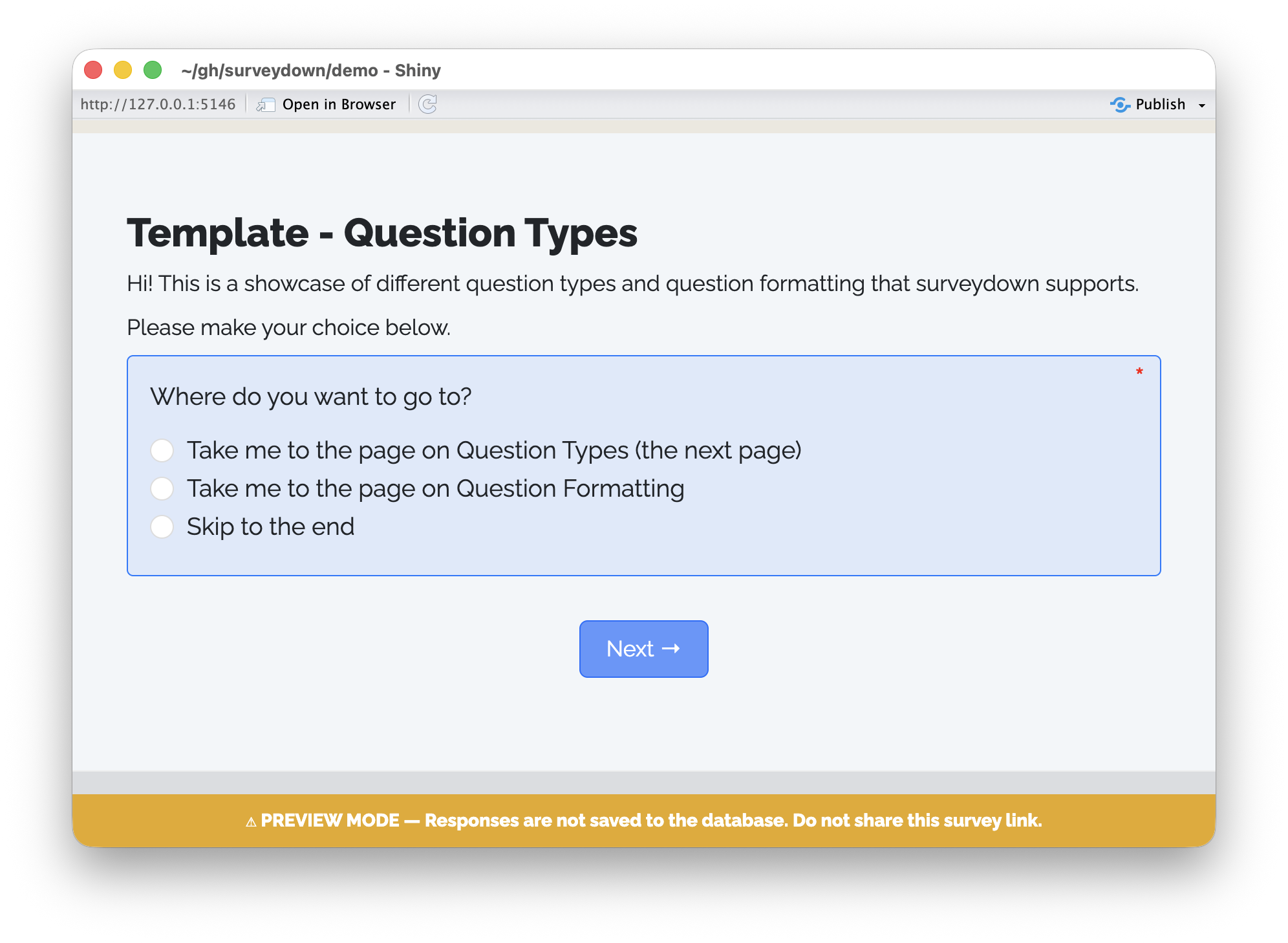
Local mode is for intentional offline data collection — no internet connection required, no banner shown, and responses are saved to a local_data.csv file in your project folder.
If mode is set to database but the connection fails (e.g. no .env file or incorrect credentials), a red banner appears instead:
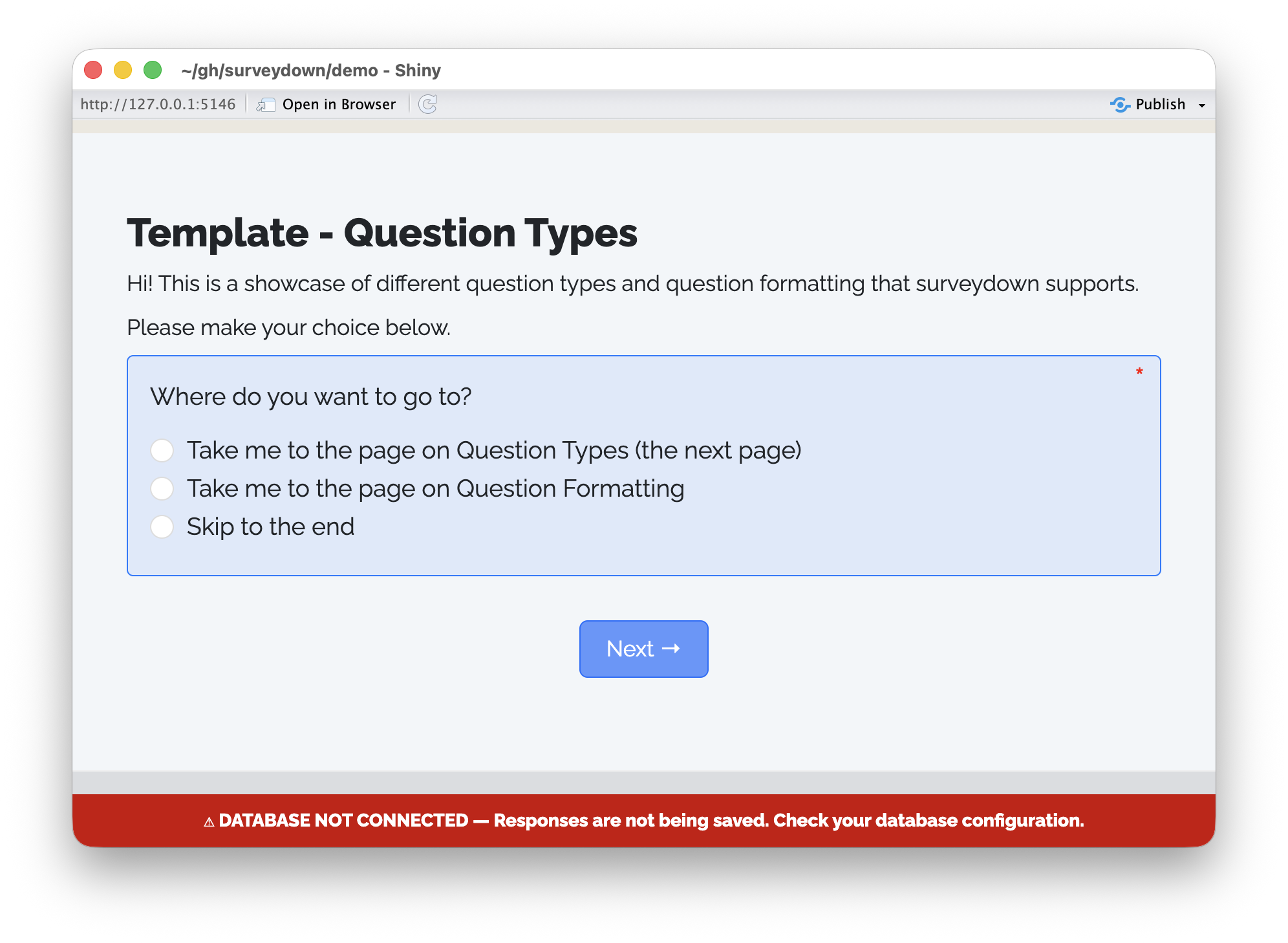
See the Storing Data page for full details on database setup and connection configuration.
Auto scroll
The auto scroll feature allows the page to automatically scroll according to the user’s working progress.
Define auto scroll like this in YAML:
auto-scroll: trueBy default, auto scroll is disabled.
Survey rating
You may want to add a survey rating question by the end of the survey to collect user reflections. Simply set rate-survey to true (Default to false) in YAML:
rate-survey: trueBy default, survey rating is disabled.
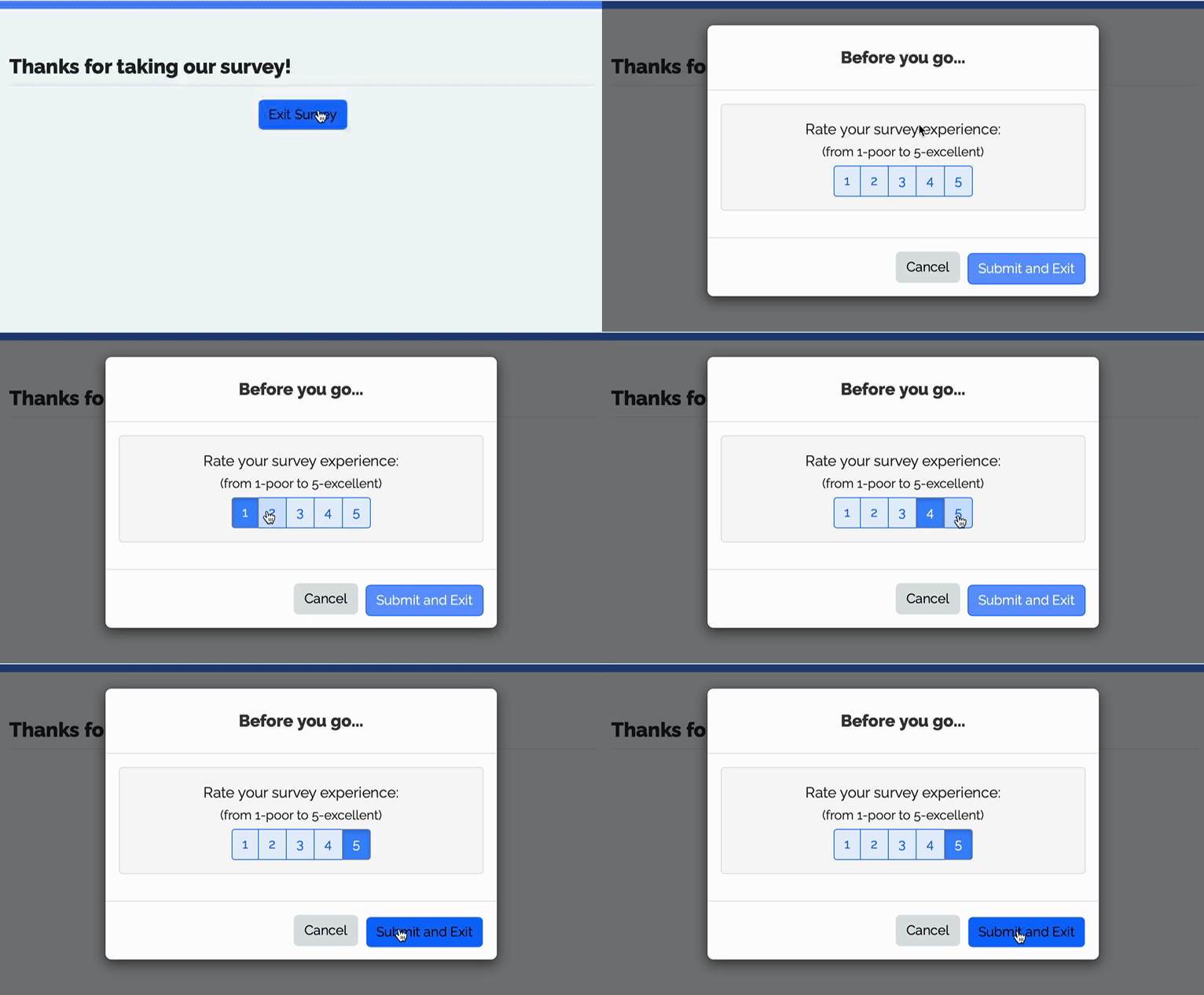
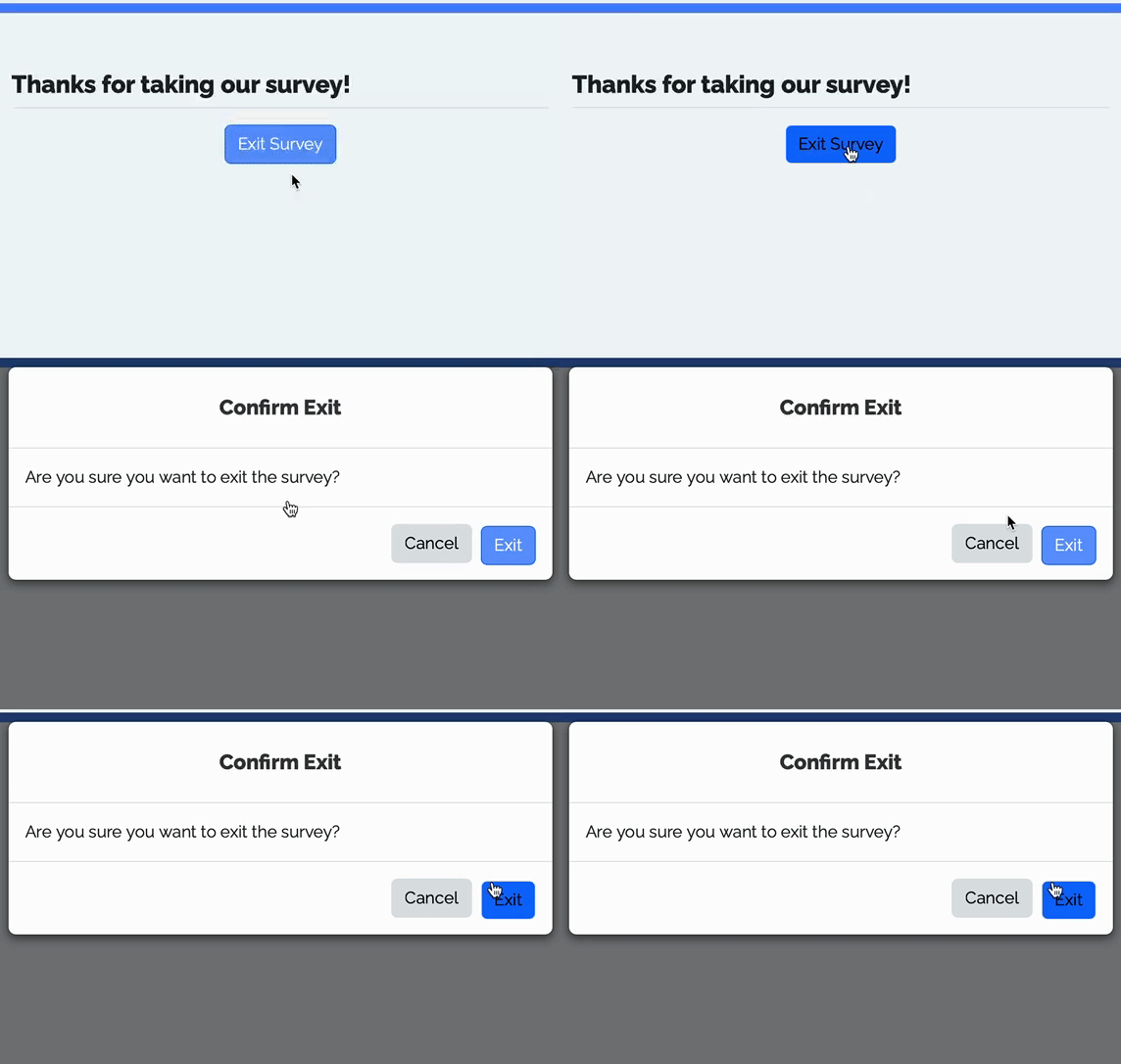
Survey rating is triggered by the “Exit Survey” button by the end of the survey. If you want to implement the survey rating, make sure you define the Exit Button by the end of the survey using the sd_close() function.
Below are the true and false cases for rate-survey:
If rate-survey is true, a survey rating question will pop up:
If rate-survey is false, a confirm exit dialog box will pop up:
System language
To systematically display the preset system messages and button text elements in a different language, change the system language using a different country code.
By default, the system language is set to English (en):
system-language: enSix languages are internally supported by surveydown:
- English (
en) - German (
de) - Spanish (
es) - French (
fr) - Italian (
it) - Chinese (
zh-CN)
Below is an example of the system language set to Spanish (es):
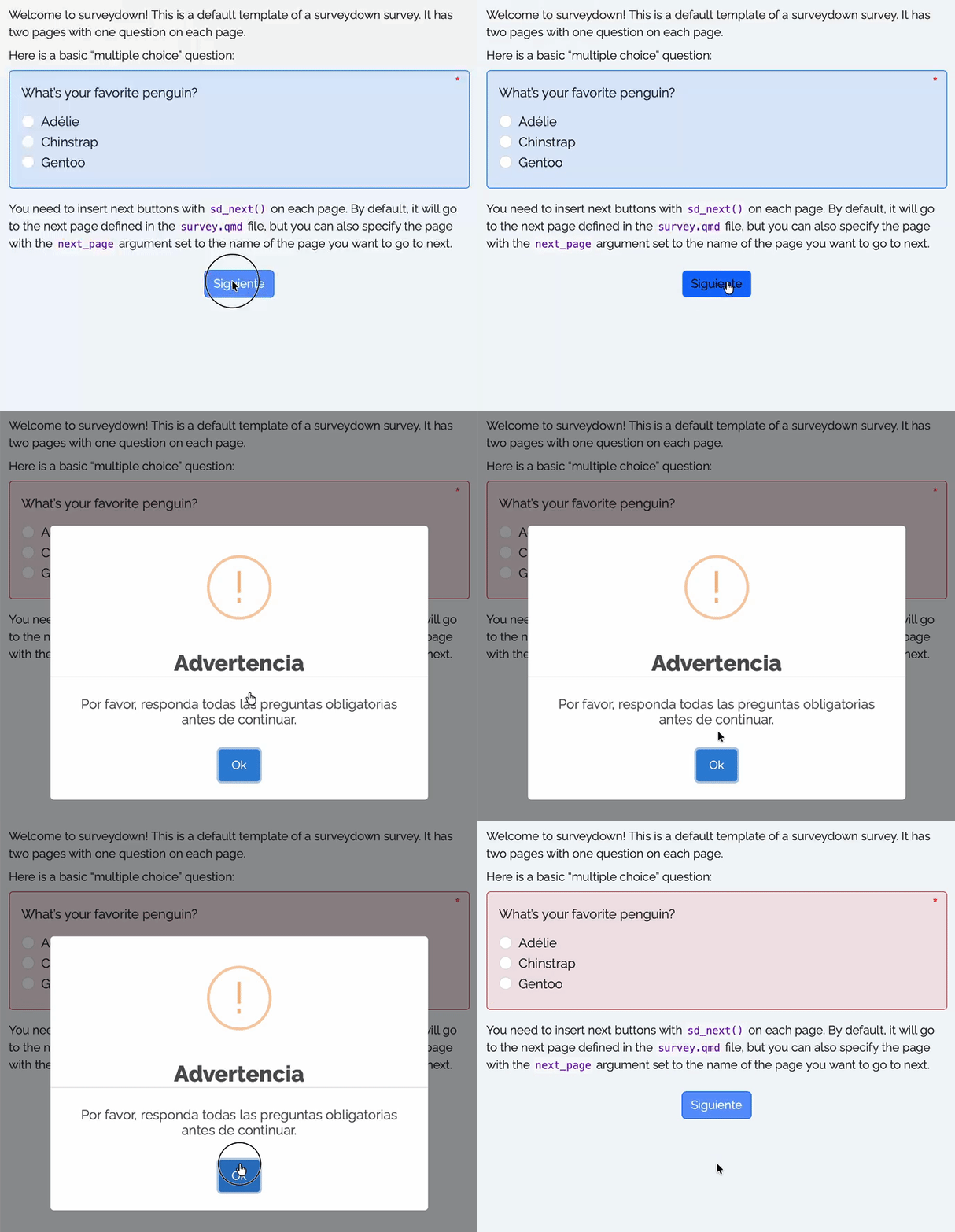
You can also customize any system message beyond these default values (see the System Messages section below).
Highlight unanswered questions
You can highlight unanswered questions to help respondents identify which questions they have not answered yet:
highlight-unanswered: true
highlight-color: gray
By default, highlighting unanswered questions is enabled. You can disable this feature by setting highlight-unanswered to false.
By default, the highlight color is set to gray (equivalent to grey). We also provide 4 other colors: blue, orange, green, and purple.
Below is an example of unanswered questions being highlighted in gray:
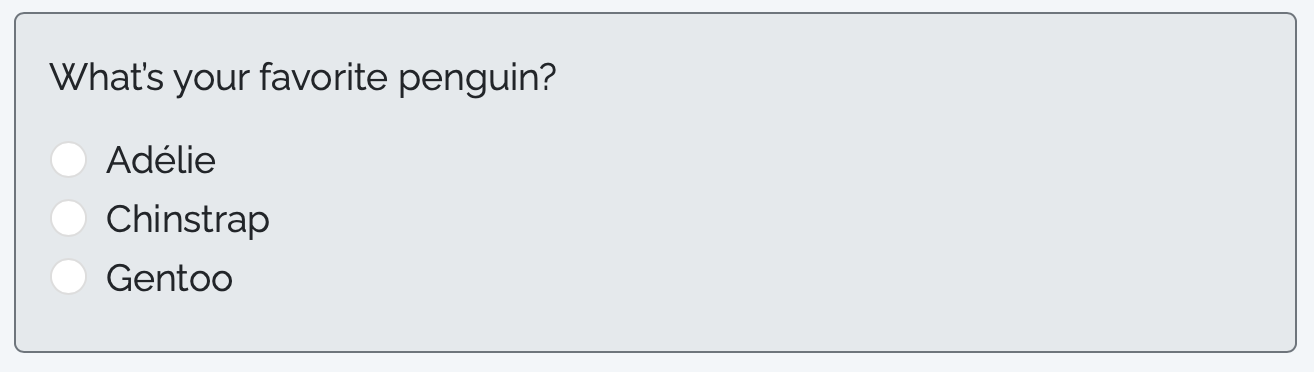
Changed to blue:
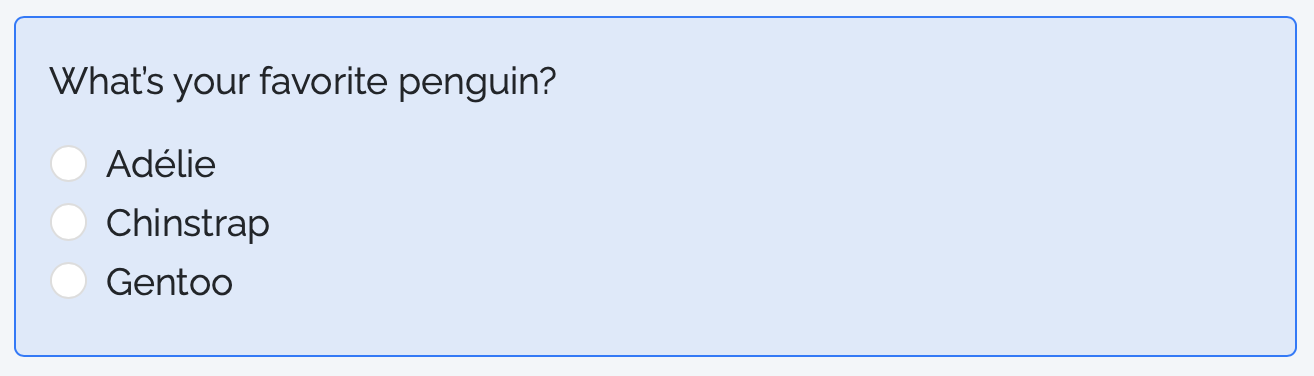
We auto-trigger red highlighting for required questions that are not answered, if the respondent attempts to click on the “Next” button without answering them, regardless of the highlight-unanswered setting.
Capture metadata
surveydown supports metadata capturing. If enabled, the data sheet will show columns of browser and ip_address, in which browser contains information of the respondent’s browser name, version, and operating system, and ip_address shows the respondent’s IP address. To enable metadata capturing, set capture-metadata to true in YAML:
capture-metadata: trueBy default, metadata capturing is enabled.
Start page
When editing your survey, it can be helpful to start the survey at a specific page. You can define the start page in YAML like this:
start-page: page_1By default, the survey starts at the first page.
Required questions
By default, no questions are required. We provide 2 YAML keys to define required questions:
Firstly, set all-required to true to make all questions required:
all-required: trueBy default, all-required is set to false.
Secondly, use required to provide a list of question IDs to make specific questions required:
required:
  - question_1
  - question_2
The questions set to required will make the respondent unable to proceed until they have answered all of them on the current page. It will also place a red asterisk (*) next to the question label to indicate that the question is required.
Shuffled questions
By default, question options and matrix subquestions are displayed in the order they are defined. You can shuffle options/subquestions for supported question types using the shuffled and all-shuffled settings.
Option shuffling is supported for these question types:
mc(multiple choice)mc_buttons(multiple choice buttons)mc_multiple(multiple choice multiple selection)mc_multiple_buttons(multiple choice multiple selection buttons)
Subquestion shuffling is supported for:
matrix(matrix questions)
Shuffle all questions
Set all-shuffled to true to shuffle all supported questions:
all-shuffled: trueBy default, all-shuffled is set to false.
Shuffle specific questions
Use shuffled to specify which questions should have their options/subquestions shuffled. You can shuffle all options/subquestions, or use indexing to shuffle only specific positions:
Shuffle all options/subquestions:
shuffled:
  - question_1
  - question_2
Indexed shuffling:
You can specify which positions to shuffle using several syntax options:
- Range notation:
1-5shuffles positions 1 through 5 - List notation:
[1, 2, 4, 7]shuffles positions 1, 2, 4, and 7 - Combined ranges:
[1-5, 8-10]shuffles positions 1-5 and 8-10
shuffled:
  - artist: 1-5                  # Shuffle first 5 options
  - fruit: [1, 2, 4, 7]          # Shuffle options at positions 1, 2, 4, 7
  - swift: [1-5, 8-10]           # Shuffle options 1-5 and 8-10
  - michael_jackson              # Shuffle all options
  - car_preference: [1, 3]       # Shuffle options at positions 1 and 3
For matrix questions, the same syntax applies but shuffles subquestions instead of options.
System messages
You can customize all system messages and button text elements displayed throughout the survey by modifying the system-messages section in YAML. By default, all system messages are in English, though you can set the default language to one of six supported languages by changing the system-language setting.
Any customizations you make in the system-messages section will override the default messages, regardless of the system language setting.
Here is a description of each system message key and its default value:
cancel: Text for the cancel button in dialog boxes.confirm-exit: Title text for the confirm exit dialog box (when usingsd_close()to insert a closing button).sure-exit: Message text asking if the user is sure they want to exit the survey (when usingsd_close()to insert a closing button).submit-exit: Text for the submit and exit button in the confirm exit dialog box.warning: Title text for warning dialog boxes.required: Message text prompting the user to answer all required questions before proceeding.rating-title: Title text for the survey rating dialog box.rating-text: Message text prompting the user to rate their survey experience.rating-scale: Description of the rating scale used in the survey rating question.previous: Text for all previous navigation buttons.next: Text for all next navigation buttons.exit: Text for the exit survey button.close-tab: Message prompting the user to close the tab manually to exit the survey.choose-option: Placeholder text for dropdown menus.click: Text for clickable links.redirect: Text indicating that the user is being redirected.seconds: Text indicating the number of seconds remaining before redirection.new-tab: Text indicating that a link opens in a new tab.redirect-error: Error message displayed if redirection fails.