install.packages("shiny")Troubleshooting
Note
surveydown requires some basic setups in order to get running. If you find glitches or failures, this page is for you.
R & RStudio
Make sure you have installed the up-to-date versions of R and RStudio. Both can be installed via this link.
R is the coding language that supports surveydown, and RStudio is the IDE that runs R. Other than RStudio, you can also choose VS Code or Positron. These two IDEs are both open to multiple coding languages, with R included and highly supported.
Quarto
Quarto is a publication system that supports Markdown and code scripts. surveydown uses Quarto to turn scripts into nicely formatted survey pages.
Sometimes, glitches of your quarto rendering can be simply solved by an update. To install or update Quarto, go to this page and click on the big download button.
R Packages
After you’ve installed all the above environments, it’s time to take care of the R packages. The function we use to install R packages is install.packages(), and is thus used a lot in this section. You might want to re-run this function for these packages in order to get the most recent version.
Launch the R Console
The R Console is used to run R codes as well as install R packages. It can be launched by one of the 2 ways:
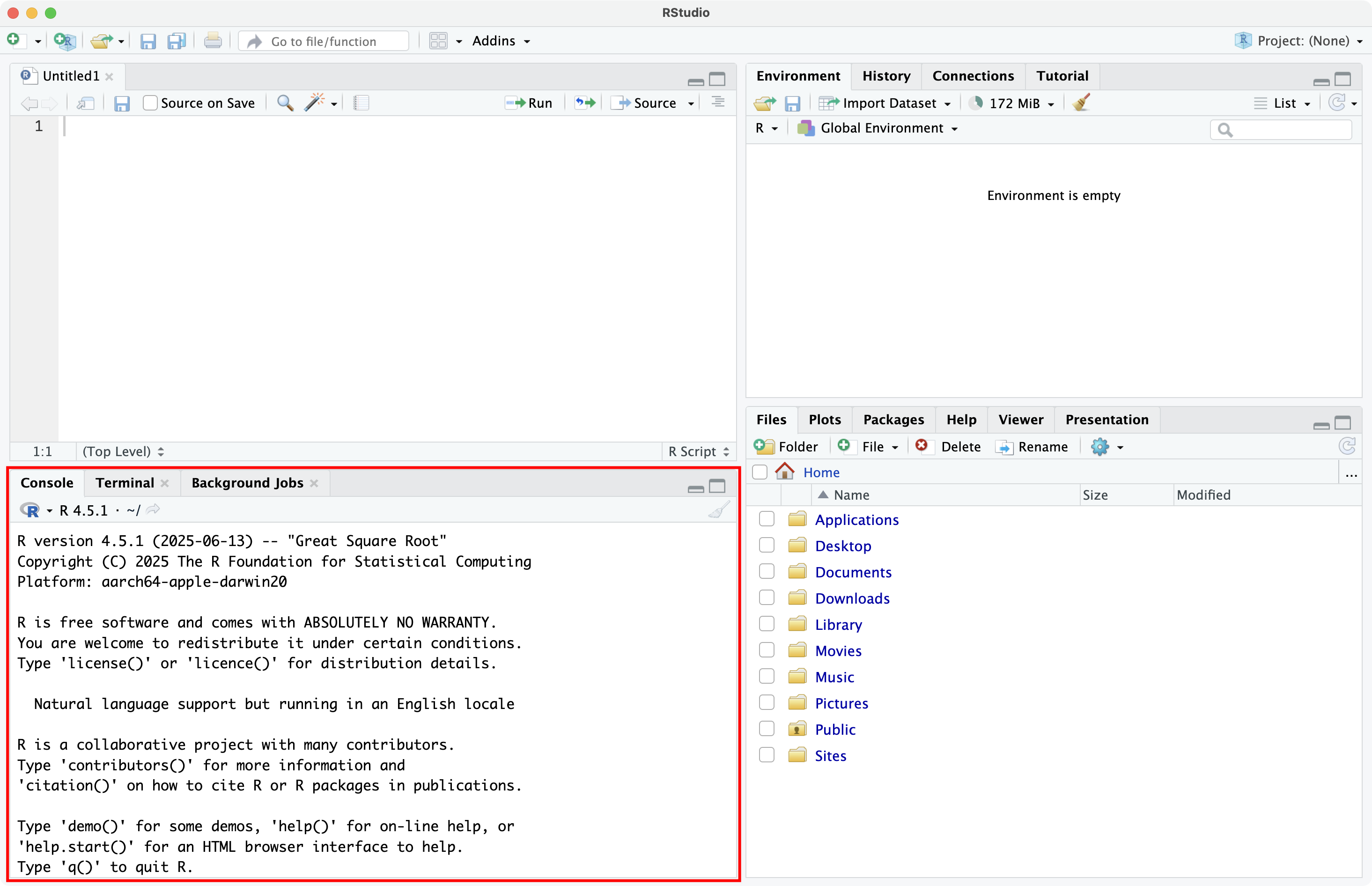
Launch an RStudio session and you’ll find your R Console in it. It’s located at the bottom left by default.
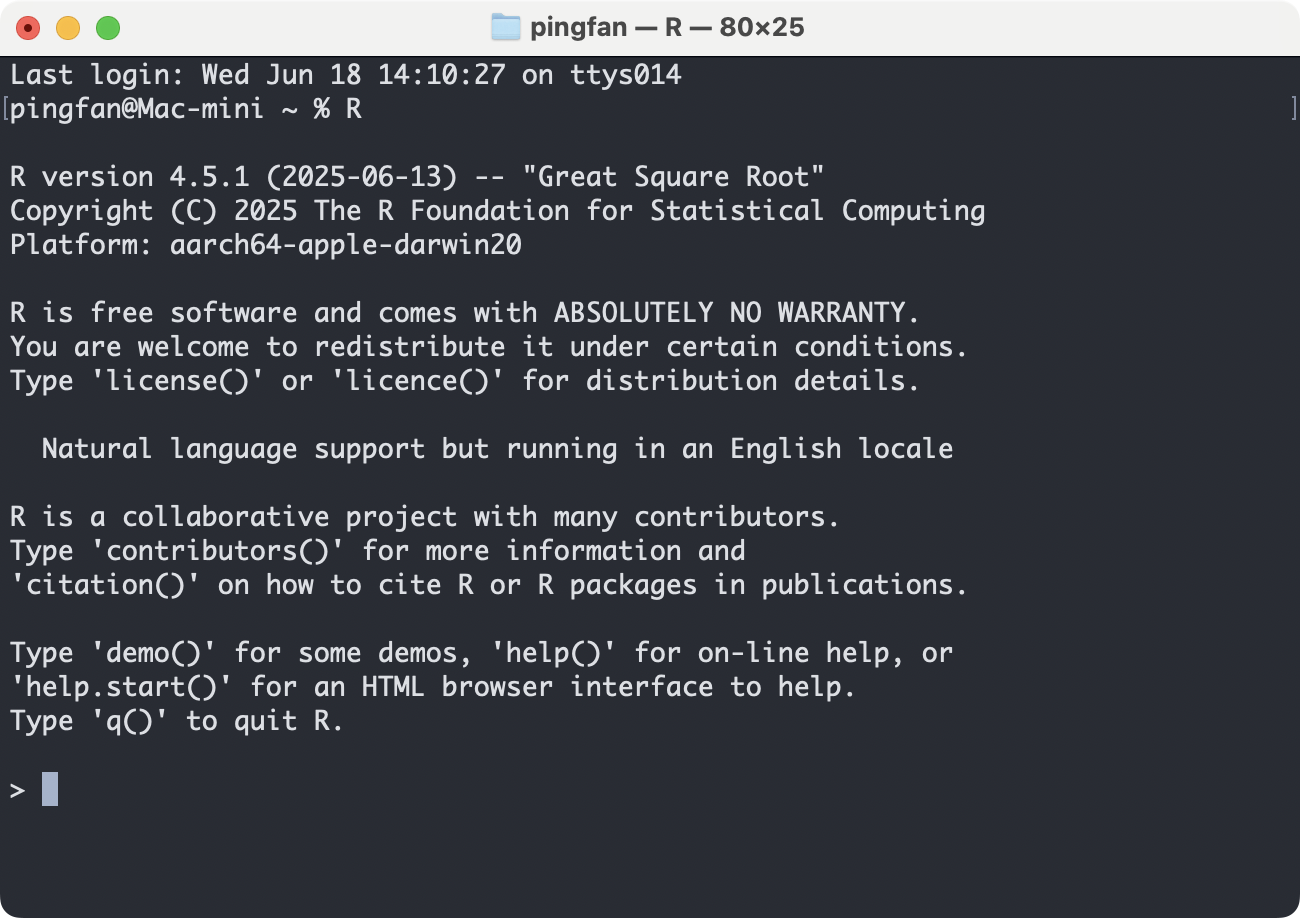
Launch your Terminal and simply type “R” (capitalized) and then Enter.
Shiny
All surveydown surveys are Shiny webapps, so Shiny is an essential component.
In your R Console, run this to install Shiny:
surveydown
In your R Console, run this to install surveydown:
# CRAN version - stable but might lack the latest features
install.packages("surveydown")

# GitHub version - with the latest features
pak::pak("surveydown-dev/surveydown", ask = FALSE)
The GitHub version installation requires the pak package. If you don’t have it, install it using:
install.packages("pak")
Note
Sometimes neither of these approaches work, often because your path is managed by some package managing system like Anaconda. In this case, a third alternative is to download the zip file of the package source code and then install it locally.
To download the zip file, go the the surveydown repo, click on the green “Code” button and click on “Download Zip”, or simplify click on this link.
Unzip this repo, then open the surveydown.Rproj file. In your R Console panel, run this code to install:
# install.packages("pak")
pak::local_install(ask = FALSE)
Some useful links:
sdApps (Optional)
sdApps is a companion R package with surveydown. It is intended for supportive webapps for surveydown. Now it has an sd_studio() function that launches the surveydown Studio, which supports GUI interface for survey construction, preview, and database management.
In your R Console, run this to install sdApps:
# GitHub version - sdApps is not on CRAN yet
pak::pak("surveydown-dev/sdApps", ask = FALSE)
Call sdApps::sd_studio() to launch the surveydown Studio:
sdApps::sd_studio()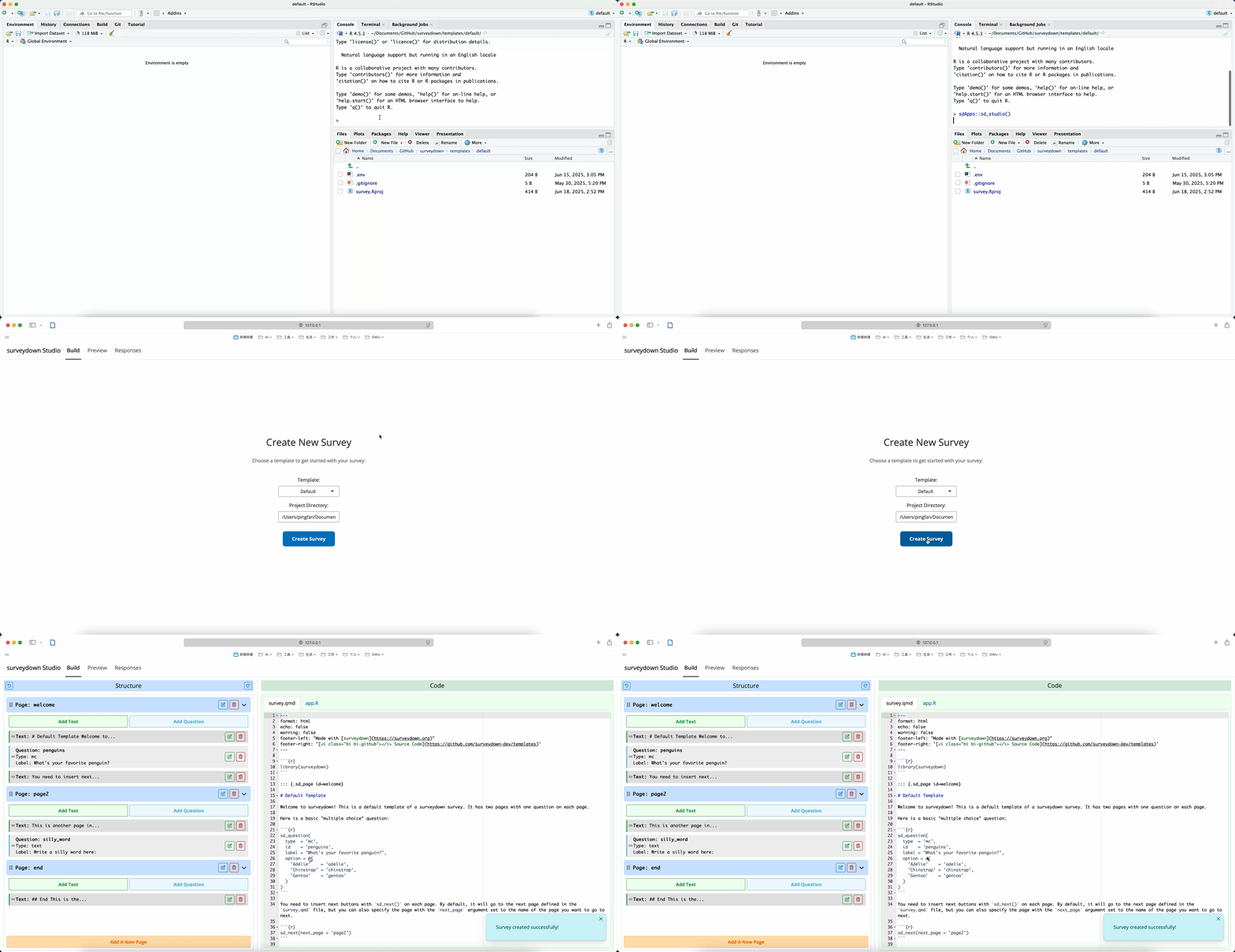
Other R Packages
You might need some other R packages to get your survey running, for example, tidyverse, kableExtra, etc. Likewise, you can use the install.packages() function to install them:
install.packages("tidyverse")
install.packages("kableExtra")
Database Connection
Note
If you encounter connection problem using surveydown with versions earlier than v0.12.5, this part might be helpful for you.
You might encounter connection problem caused by failure of GSSAPI (Generic Security Services Application Program Interface). It is a a protection layer for data security supported by PostgreSQL. In SQL management, it is controlled by the gssencmode argument.
In previous versions of surveydown (before v0.12.5), the sd_db_connect() and sd_dashboard() functions have a gssencmode default to "prefer", which enables GSSAPI, but may cause connection failure under some network conditions (VPN, for example). Our previous solution is to manually change gssencmode from "prefer" to "disable", but it is less intuitive and causes more trouble than efficiency.
Therefore, our current solution (versions after v0.12.5) is to remove the gssencmode argument from these functions, in which the GSSAPI is set to "prefer" by default, but if the connection errors due to network problem, it will auto-switch to "disable" and leave a message.
Still Can’t Deploy?
If your shinyapps deployment fails, you should firstly make sure your Supabase credentials are correctly defined, including your Supabase project settings and password settings. The password defined by sd_db_config() should be the same as your Supabase project password. Access the Storing Data page for how to set all Supabase credentials. Then, make sure your survey runs on your local machine and can successfully link with your Supabase project table. With these confirmed, your shinyapps deployment should work without problem.
If you still encounter an error (e.g., the page shows the app failed to start, or you see the page but it doesn’t run properly), try clearing your cache. The simplest way to do so is to reboot your computer. It may also help if you delete previously generated files, such as the survey.html file if you rendered it and the rsconnect folder. After re-rendering, you should be able to deploy the app without error.